




vscode中eslint插件不生效的解决过程

vscode中eslint插件不生效
典型场景:
免费影视、动漫、音乐、游戏、小说资源长期稳定更新! 👉 点此立即查看 👈
最近在利用webpack打包js资源时,想借助VS Code的eslint插件,配合eslint plugin来做代码校验。虽然在.eslintrc.js和webpack.config.js里都配置妥当了,
在控制台运行npx webpack时,也能正常读取到eslint plugin的检测结果,但问题来了——
一、eslint插件读取项目中.eslintrc.js配置文件
1、 eslint插件在编辑器里始终“装睡”,代码里本该出现的红色波浪线,愣是没影儿。
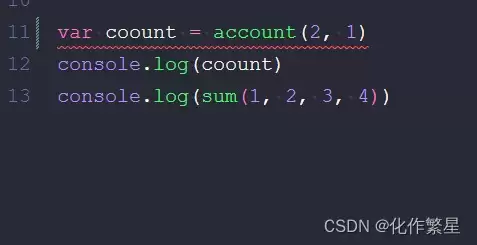
遇到这种情况,第一步自然是去查官方文档。在eslint插件官网,有这么一段关键描述:
eslint.enable: enable/disable ESLint for the workspace folder. Is enabled by default.
顺着这个线索,在配置项里找到configFile。如果这里设置了值,首先得检查它指向的文件路径对不对;如果不对,或者你压根不确定,那最稳妥的办法就是直接删掉这项配置。
原因很简单:configFile如果不主动设置,ESLint会自己动起来,在当前工作目录及其父目录里自动搜寻默认的配置文件。
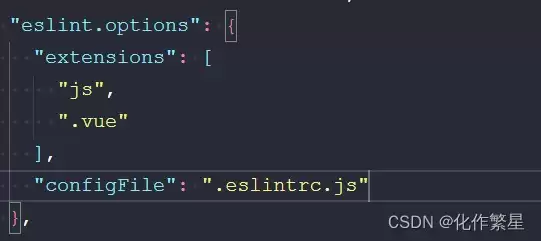
所以,解决方案很明确:要么在vscode的配置里明确设置eslint.enable: true,要么更干脆一点,直接在setting.json配置文件里把这个配置项删掉——毕竟官方提示也说了,这个.enable配置未来会被弃用。
二、eslint插件读取.eslintignore文件失效(eslintignore文件不生效)
解决了配置文件读取,别急着收工。有时候你会发现,.eslintignore文件好像也没起作用。这时候,就得继续深挖文档了。
eslint.workingDirectories - specifies how the working directories ESLint is using are computed. ESLint resolves configuration files (e.g. eslintrc, .eslintignore) relative to a working directory so it is important to configure this correctly. If executing ESLint in the terminal requires you to change the working directory in the terminal into a sub folder then it is usually necessary to tweak this setting. (see also ESLint class options#cwd). Please also keep in mind that the .eslintrc* file is resolved considering the parent directories whereas the .eslintignore file is only honored in the current working directory. The following values can be used:

[{ "mode": "location" }] (@since 2.0.0): instructs ESLint to uses the workspace folder location or the file location (if no workspace folder is open) as the working directory. This is the default and is the same strategy as used in older versions of the ESLint extension (1.9.x versions).
[{ "mode": "auto" }] (@since 2.0.0): instructs ESLint to infer a working directory based on the location of package.json, .eslintignore and .eslintrc* files. This might work in many cases but can lead to unexpected results as well.
string[]: an array of working directories to use. Consider the following directory layout:
root/
  client/
    .eslintrc.json
    client.js
  server/
    .eslintignore
    .eslintrc.json
    server.js
Then using the setting:
  "eslint.workingDirectories": [ "./client", "./server" ]
will validate files inside the server directory with the server directory as the current eslint working directory. Same for files in the client directory. The ESLint extension will also change the process's working directory to the provided directories. If this is not wanted a literal with the !cwd property can be used (e.g. { "directory": "./client", "!cwd": true }). This will use the client directory as the ESLint working directory but will not change the process`s working directory.
[{ "pattern": glob pattern }] (@since 2.0.0): Allows to specify a pattern to detect the working directory. This is basically a short cut for listing every directory. If you ha ve a mono repository with all your projects being below a packages folder you can use { "pattern": "./packages/*/" } to make all these folders working directories.
简单翻译一下核心意思:
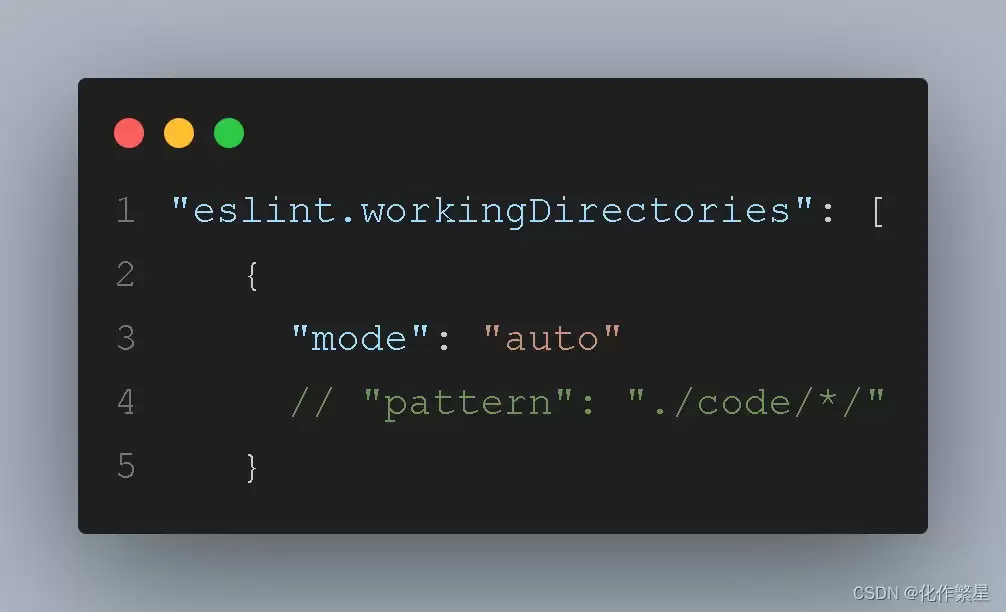
eslint.workingDirectories 这个配置项,说白了就是设置ESLint的工作目录。它决定了插件去哪里找.eslintrc和.eslintignore这些配置文件。所以,我们需要在setting.json文件里对它进行配置。
[{ "mode": "location" }] 这是默认模式。
[{ "mode": "auto" }] 让ESLint根据package.json、.eslintignore和.eslintrc*文件的位置,自动推断工作目录。这在很多情况下能工作,但也可能带来意想不到的结果。
[{ "pattern": glob pattern }] 允许你用一个通配符模式来指定工作目录。这相当于一个快捷方式,不用一个个目录手动列出来。比如,如果你的项目是monorepo结构,所有子项目都在一个packages文件夹下,就可以用{"pattern": "./packages/*/"}来把这些文件夹都设为工作目录。
道理很清晰。
既然默认的location模式可能“罢工”了,那剩下的选项主要就是两个:让插件自动“推断”,或者我们手动明确“指定”。
总结
以上就是排查VS Code中ESLint插件失效问题的核心思路与步骤。希望这份梳理能为大家提供一个清晰的参考,也欢迎多多交流。
您可能感兴趣的文章:
- vscode eslint插件报错Parsing error: Invalid ecmaVersion问题
- vscode的eslint插件不起作用问题及解决
- VSCode中ESLint插件修复以及配置教程
- 关于VSCode 装好ESLint 插件 import 报黄线的问题
- Vue项目vscode 安装eslint插件的方法(代码自动修复)
- vscode中eslint插件的配置(prettier配置无效)

游乐网为非赢利性网站,所展示的游戏/软件/文章内容均来自于互联网或第三方用户上传分享,版权归原作者所有,本站不承担相应法律责任。如您发现有涉嫌抄袭侵权的内容,请联系youleyoucom@outlook.com。
 同类文章
同类文章

使用Python合并与拆分Excel单元格的实用方法
使用Python合并与拆分Excel单元格的实用方法 处理Excel表格时,合并单元格是个绕不开的操作。无论是为了制作清晰美观的表头,还是为了突出显示某些关键信息,这个功能都相当实用。不过,当需要批量处理或者将流程自动化时,手动在Excel里点点划划就有点力不从心了。今天,我们就来聊聊如何用Pyth

SpringBoot OpenFeign整合okHttpClient实践
前言 在SpringCloud微服务架构中,服务间的数据传输,OpenFeign无疑是那个既简单又好用的选择。不过,它默认使用的客户端是JDK自带的HttpURLConnection,这里有个小细节值得注意:这个客户端本身并不具备连接池功能。 这意味着什么?简单来说,每一次发起远程调用,系统都会尝试

修改JAR文件并重新打包的两种方式
本文介绍两种修改 JAR 包内文件(如配置文件或 Class 文件)后重新打包的方式:Ja va 命令方式 与 Ant 脚本方式。 核心警告 对于 Spring Boot 的可执行 JAR 包,重新打包时严禁使用压缩(必须使用存储模式),否则会导致 ClassNotFoundException 或启

C++中INI配置文件读取技术详解
一、INI文件格式概述 在众多配置文件格式中,INI(Initialization)格式堪称经典。它以纯文本形式存储,结构清晰直观,既便于开发者手动编辑与维护,也易于程序进行自动化解析与读取。这种简单高效的特点,使其在软件配置、游戏设置、系统参数管理等场景中,至今仍被广泛应用。 1 1 基本结构 一

idea如何保存当前已修改的文件|恢复到未修改状态
1、打开git,如下步骤1 先来看第一张图,这是整个操作的起点。 在步骤2的区域,你会看到所有被修改过的文件都列在这里,一目了然。 而步骤3指向的代码区域,正是我们修改后还在报错的部分,问题就出在这儿。 这里有个关键细节:注意看圈4标识的地方,你所有修改过的代码行,IDE都会用淡绿色的背景高亮显示,


- 日榜
- 周榜
- 月榜
 1
1
 2
2
 3
3
 4
5
6
7
8
9
10
相关攻略
4
5
6
7
8
9
10
相关攻略
 2015-03-10 11:25
2015-03-10 11:05
2021-08-04 13:30
2015-03-10 11:22
2015-03-10 12:39
2022-05-16 18:57
2025-05-23 13:43
2025-05-23 14:01
热门教程
2015-03-10 11:25
2015-03-10 11:05
2021-08-04 13:30
2015-03-10 11:22
2015-03-10 12:39
2022-05-16 18:57
2025-05-23 13:43
2025-05-23 14:01
热门教程
- 游戏攻略
- 安卓教程
- 苹果教程
- 电脑教程


 热门话题
热门话题
